Do you have more than one cash drawer or till and you want to keep the money in each drawer separate? Now you can have multiple registers with each register assigned to its own computer/mobile device. This article will show you how to set up more than one register.
In your Essentials program, go to Stations > Registers and click + New Register to add a second or third register. Name this register what you choose and enter an amount to start the drawer. You will also find there is a Register URL created with the name of the register.
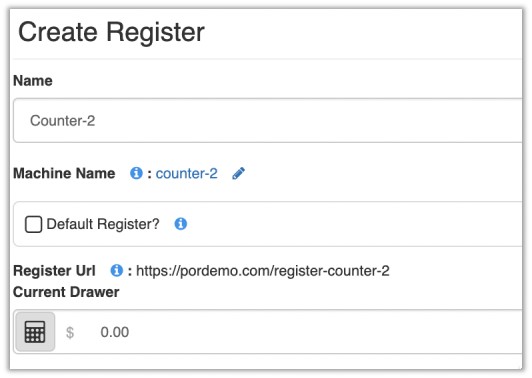
The device that will be using this specific register will need to sign into this exact URL for the collected payments to go to this register and not the default register. It is recommended that the URL is placed as the default home page of the browser this device will be using. You can go into your browser settings to set this.
If you are integrated with credit cards, you can associate that credit card terminal with a register.
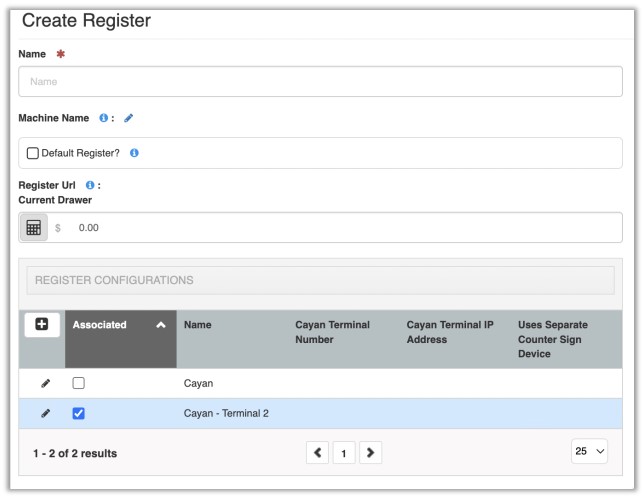
Click Save and repeat for each register you have.
To reconcile each register, click the edit icon next to each register like explained in our Reconcile Cash Register article.
Related articles
Reconcile Cash Register