Was this article helpful?
Day at a Glance
This document will explain the Day at a Glance module, including sorting and accessibility features like the toolbar, filters, tabs, and columns that you can add and remove. Day at a Glance allows you to quickly view and access contract information across your system, in all stages of the contract lifecycle.
Topics in this article include
-
Here's how to get there
-
Toolbar
-
Filters
-
Tabs
-
Adding and reordering columns
-
Sorting columns by delivery/pickup dates
-
Tab Security
-
Reordering Tabs
Here's how to get there
Expert
- Program Menu > Counter System > Day at a Glance
- Program Menu > Item Availability > Day at a Glance
- From Item Availability, your Day at a Glance screen never goes away. It will fire off a new program whenever modifying or otherwise bringing up a contract. Once you finish the contract, you will be returned to your Day at a Glance screen.
Elite
- Left Menu > Tools > Day at a Glance
Toolbar
There are four toolbar options: Options, Reports, Letters, and Contract Lookup
Options
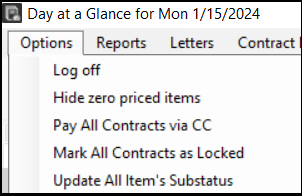
| Log Off | This will log out the user profile you used to access Day at a Glance. |
| Hide Zero Priced Items | With this option checked, items with a price of $0 will not be displayed on the screen. This can be helpful with large contracts with many components, such as tents. |
| Pay All Contracts via CC (ELITE ONLY) |
This feature is available exclusively for Elite users and allows you to pay all contracts using a credit card in the Day At A Glance (DAG) view. Before using this feature, it must be enabled, which you can do under the Security section in the Accounting Security area. You can use this feature across any tab. First, use the DAG filters to narrow down the contracts you want to review. After filtering the contracts, make sure to examine the remaining ones before selecting the payment option. Once you choose this option, the system will process payments for all visible contracts using a valid credit card token. Contracts without a valid token will be skipped. Each payment attempt will be recorded in the transaction edit. |
| Mark All Contracts as Locked | Once a contract is marked as locked, the counterperson cannot modify it without a password. |
| Update All Item's Sub-status | This option will update all transaction items’ sub-status to the selected status. |
Reports
Print all Contracts - Selecting this button will print all of the contracts currently listed on the screen.
Print Screen - Selecting this button will print the current screen.
Print Day at a Glance Report - This will print a copy of the Day at a Glance Screen.
Item Prep Report - This will print a report listing all items on reservation contracts that must be prepped.
Export to Spreadsheet - This allows you to export the Day at a Glance screen to an Excel file.
Calendar View - This allows you to see the Day at a Glance screen in a calendar format. For example, the day is broken down by the hour.
Letters
The tab you are viewing when you click on Letters will determine which letters are available to send to your customers. Letters are dependent on contract status. For instance, if you are on the Reservations tab, the letters available are Reservation Verify, Reservation Reminder, and Generic Letters. See this article for more information Email Letters.
You must be licensed for the Mass Fax/Email Module in order to use this feature. To become licensed or for more information on the Mass Fax/Email Module, click here.
Contract Look-up
Allows you to print, close, modify, inquire, or start a new contract.
Filters
This section will define filter options. Using filters, you can sift and sort through the information Day at a Glance provides. Filters are located at the top, with the grouping option at the bottom of the screen. This will allow you to choose what information is presented and how it is displayed.
Some tabs, such as Quotes, Subrentals, and Waiting List, show all contracts without regard to the selection criteria.
Date - This changes the date for your Day at a Glance view. The selection criteria for the Date option and the Show Item Details Options located in the upper left of the screen are not always displayed. This is determined by the tab you are viewing. This field works in combination with the Days field.
Days - This changes the number of days that will be reported from the date. Your Day at a Glance view will expand to include postings listed on future dates according to the range you have set in the field. This field works in combination with the Date field.
Show Item Detail - Checking this box means that all of the items on the contracts will be displayed. Unchecking it means that only one line item per contract will be displayed, and the contract values will be listed. The Open Items, Overdue Items, and Items in Repair tabs always show item details, therefore, this option is not available on those tabs. Please be warned that doing this will increase the record count, and high record counts could cause long loading times.
Note: You must now click the box to “show item details” before you can “confirm” and “update the sub status”. In order to update every line on the contract, you must have all items displayed. See Transaction Items Sub Status for more information. The selection criteria for the Date option and the Show Item Details Options located in the upper left of the screen are not always displayed.
Filter - You can filter your Day at a Glance results. For example, if you want only to see contracts in Arlington, type "Arlington" in the filter box and select City for the filter field.
Store to Display - You can select a particular store or all your stores to report on Day at a Glance. Only contracts from the selected store will be displayed. If the contracts are not in your store, the store number column will be in red.
Grouping - This allows you to group any tab by several fields. Once a group is selected, the screen displays the information. The top line will be bold with the total value of all columns by Total, Paid, Owned, and Qty. Below is a photo of the grouping options.
Parts Filter - This checkbox allows dealerships to identify parts orders distinct from other kinds of contracts easily. If a transaction is assigned the type of "Parts Order," checking this box will filter to just those transactions. This box will not be visible if no "Parts Order" transaction type exists.
Tabs
This section will define Tabs. Day at a Glance has multiple tabs that show contracts or line items from contracts that meet the selection criteria.
The tabs in Day at a Glance include: Reservations, Deliveries, Pickups, Non-deliveries, Off Rent, Due Back, Due Non-pkup, Came Back, Went Out, Open Items, Overdue Items, Unpaid, Subrentals, Quotes, Work Orders, IRO, Service Calls, IMO, Non-serialized, Waiting List, Overview, Transfers In, Transfers Out, Assigned, Completed, and Review.
Selecting the contract date can be very useful, especially for the Reservations, Deliveries, and Pickups Tabs. For example, you can quickly determine if contracts were supposed to be delivered but were not or if someone forgot to "open" the reservation contract by going into the Deliveries Tab and selecting dates in the past, such as yesterday. Again this feature is helpful for the Pickups Tab to see if a pickup was missed quickly.
Tab Security
When Day at a Glance is opened, it defaults to the Overview tab. This can be customized by going to Menu Security, selecting the Day at a Glance tab, and unchecking the boxes that you do not want to show in Day at a Glance. You will not be able to uncheck all the boxes. For more information on terminal security and configurations, click Menu Security.
Expert: Program Menu > Security > Menu Security > Day at a Glance tab
Elite: Configuration Gear > Menu Security > Day at a Glance tab
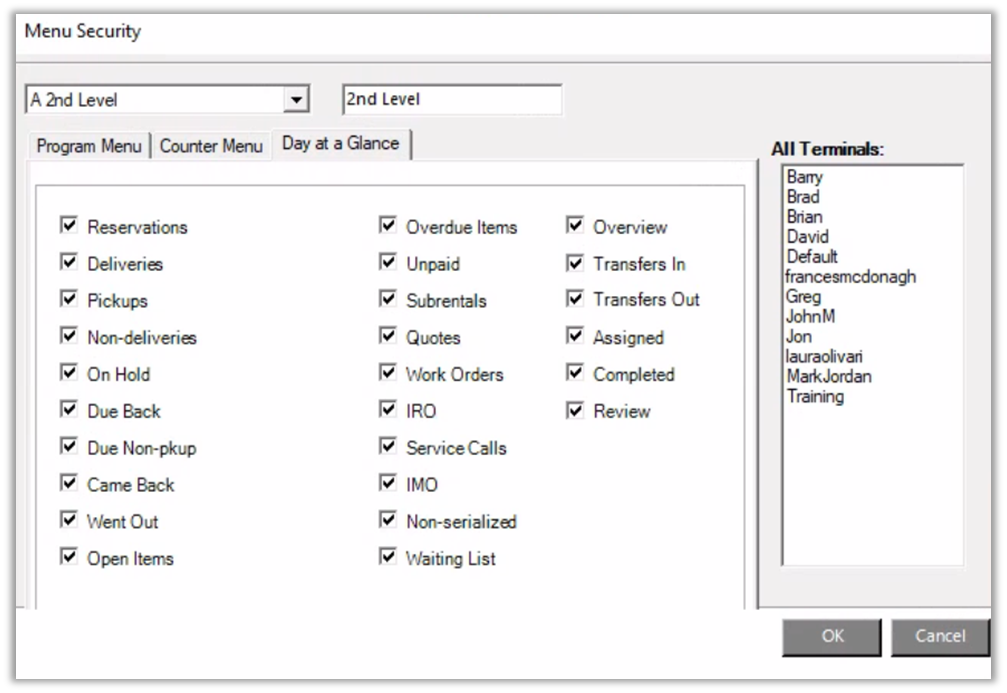
Tab definitions
The date and the number of days selected within the tab will affect all contracts displayed. The Reservations, Deliveries, Pickups, Due Back, Came Back, and Went Out tabs will default to the present date.
Overview - This tab visually displays the number of deliveries, will-call, pick up, and due to back contracts within a seven-day time period from the date entered at the of the screen.
Transfer In - This tab will list all equipment contracts being transferred in from another store location. It will also display resell items if you are selecting show item details.
Transfer Out - This tab lists all equipment contracts being transferred to another store location. It will also display resell items if you are selecting show item details.
Assigned - This tab will list all contracts that are assigned to you. This allows you to see at a glance what you are working on and what needs to be completed.
Completed - This tab will list contracts where all items have been returned, and the balance has been paid in full. Only active contracts will be visible. Contracts are automatically moved to historical after the specified period of time set in parameters. For more information on the "Days to hold completed contract" setting, visit Set Up.
Review - This tab will list all contracts that must be reviewed before completion, also known as Review Billing. For more information see our Review Billing article.
Reservation - This tab shows all reservation contracts ready to be sent out. Selecting the contract date can be helpful in previous and upcoming reservations.
Deliveries - This tab shows all outgoing contracts. Selecting the contract date can be very useful, especially for the Reservations, Deliveries, and Pickups Tabs.
Pick-Ups - This tab shows all contracts scheduled to be picked up. Selecting the contract date can be very useful, especially for the Reservations, Deliveries, and Pickups Tabs.
Non-Deliveries - This tab shows all will-call (store pickups) contracts.
Off Rent - This tab shows any contract where the rental has been stopped, but the close status has not been entered.
Due Back - This tab will list all contracts that are scheduled to be returned based on the due date. It will list any open, reservation, and sub-rental contracts.
Due Non-Pickups - This tab will list all contracts (will-call) that are due or past due based on the contract's due date. It will also list any sub-rented open contracts.
Came Back - This tab will list all contracts that have been picked up and returned to the store, including any completed or canceled contracts.
Went Out - This tab will list all contracts that have been sent out. The contract status can be open, called off rent, canceled, service call, completed, and maintenance.
Open Items - With the Show Item Detail box checked this tab will list all items on the contract. If the box is unchecked, it will only show one item that is on the contract.
Overdue Items - This tab shows contracts in an open status that are past their date due.
Note: This will not include overdue contracts with the pickup box checked.
Unpaid - This shows all contracts that are out (open status). These contracts still have money due OR have overpayments that may need to be refunded to the customer.
Sub-rentals - This tab shows all contracts that are being created to cover overbooked items on a contract.
Quotes - This tab shows all potential contracts that have not been converted to reservations.
Work Orders - This tab shows all work orders currently in an open status.
IRO - This tab will list all Internal Repair Orders in an open status that have equipment taken out of stock for repair.
Service Calls - This tab shows all open contracts scheduled for service.
IMO - This tab will list all Internal Maintenance Orders that are scheduled for maintenance.
Note: This will not take items out of inventory.
Non-Serialized - This tab allows the selection of listed serialized items when the header record is sent out.
Note: Parameters are set to not force serialized time on send out.
Waiting List - This tab lists customers who are waiting for equipment. This is created when a customer is added to the time waiting list.
Adding and reordering columns
You can arrange, add, or remove columns to customize how you view Day at a Glance. The column order, sort order, and columns displayed are held for each tab by Operator ID. So when you set your preferences, those preferences will follow you to each terminal you use.
1. Right-click on the header bar above the first item in the list to display the Column box. View the image below as the header bar may be blue or green depending on your product.
2. A new window will appear showing all available columns. Check or uncheck any box to display or hide a column.
3. You can also change the order of the columns. You can reorder the columns by selecting the Move Up or Move Down buttons.
4. When you are finished making selections, press Save. Your selections will populate in Day at a Glance. These settings can be set for a specific user, as a store or company default.
Sorting columns by delivery/pickup dates
When sorting by Delivery Date, or Pickup Date, contracts are not displayed in numerical order. This is because it's a text field in the database and sorts accordingly. To sort by the contract delivery or pickup date sort columns by the Delivery Date Raw or Pickup Date Raw options. For more information on how to add columns to display, see the previous topic Adding and reordering columns.
Tab Security
This section will cover security that can limit or grant DAG tab access.
- Follow the path below for your product.
- Expert: Go to Program Menu>Security>Menu Security>Day at a Glance tab
- Elite: Configuration gear > App Security > Menu Security > Day at a Glance tab
- Select the Security group from the dropdown and select each tab you want to be visible. Double-click the terminals under the "All Terminal" list to the "Terminals in this group" list on the left.
- Important!! To find your terminal ID, follow the path below for your product. (If your terminals are not listed by your name, they could be listed as PC1, 2, store1pc2, etc.)
- Expert: The terminal ID can be found in your Program Menu at the bottom, under the Enter Selection.
- Elite: Left Menu > User Tools > Operator Information > Print Setup > Advanced tab > User
- Important!! To find your terminal ID, follow the path below for your product. (If your terminals are not listed by your name, they could be listed as PC1, 2, store1pc2, etc.)
- Click OK
Reordering Tabs
You can reorder tabs in the DAG tab window. To get there, right-click on any tab. Uncheck any box to remove it from view. Check the box to make them visible. To reorder the tabs, click on the tab (you might have to click it twice to make sure its box is checked) and use the move up/down buttons to reorder them.