Was this article helpful?
This article will explain how to export and import files for both purchase orders and the general ledger, as well as how to set up the file formats for accounting integrations.
Topics included in this article
- Exporting General Ledger
- Exporting/Importing Purchase Orders as Invoices
- Getting Help with Accounting Export/Import
Exporting General Ledger
The Point of Rental system can create an import file that contains all the debits and credits for the day's transactions to be imported into a third-party accounting system. This file is not a 1:1 listing of transactions, but a summary of balance entries that will be entered as adjustments (Journal Entries) to the accounts in the destination account software.
The activity in Point of Rental will show as -
Credit Acct 1001 $100
Debit Acct 5005 $100
Credit Acct 1001 $200
Debit Acct 5009 $200
The IIF file (which can be opened as a text file) will show as -
Credit Acct 1001 $300
Debit Acct 5005 $100
Debit Acct 5009 $200
The Miscellaneous section of the Account Numbers screen allows you to set up your General Ledger export format and settings. This section can be used by users who have an API integration with their accounting software or users who upload General Ledger files manually into their accounting software.
To get there, go to Configuration > Accounting Configurations > Account Numbers.
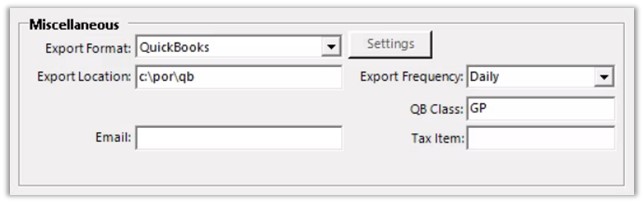
The Point of Rental system can create an import file that contains all the debits and credits for the day's transactions to be imported into a third-party accounting system. The file name is in the format PRyymmdd, where yy -year, mm - month, dd - the day for daily imports, and PR yymmMONTHLYONLY for monthly imports.
Export Format - This option allows the selection of the export file format.
IIF QuickBooks - The IIF format is a format that is used by QuickBooks.
CSV Peachtree - The CSV (comma delimited) format is used by Peachtree and others.
TXT Account Mate - This is a tab-delimited format used by Account Mate.
CSV Business Works - This format is a comma-separated file used by Business Works.
CSV Sage Accpac - The CSV (comma delimited) format is used by Sage Accpac and others.
TXT ComputerEase - This is a tab-delimited format used by ComputerEase.
CSV Tech Systems - The CSV (comma delimited) format is used by Tech Systems and others.
CSV Microsoft Dynamics - The CSV (comma delimited) format is used by Microsoft.
CSV MAS 90/200 - The CSV (comma delimited) is used by MAS 90/200 and others.
TXT Simply Accounting - The TXT (tab-delimited) format is used by Simply Accounting and others.
Export Location - Under the Export Location field, you can define where the import files are created. The default account is C:\POR\QB\.
File Extension - This option controls the extension used when creating the file (IIF, CSV).
Email - This allows you to enter an email address to have a copy of the GL entry files automatically emailed at the end of each day.
Export Frequency - This option controls the frequency with which export files are created: daily, monthly, or never.
QB Class - This field is used in QuickBooks to define separate profit centers (usually each store has its own class).
Tax Item - This field is only used when Xero is selected as the export format.
Note: QB Online export format has been added to the Export options. It requires a 3rd party add-in such as Transaction Pro Importer to load the Excel spreadsheet into QBO. This is in a CSV file. In Transaction Pro Importer you cannot use "account numbers" in the account number fields, it must be the "account description or name" in the account number fields. When mapping the Export file to Transaction Pro you must use DOCNUM as the Row Key. Additionally, you can NOT name your accounts receivable account in QuickBooks "Accounts Receivable." We recommend using POR A/R as the name of the account.
Account Numbers Store 1 (Expert) - Checking this box allows you to use the account numbers you assigned from your Store 1 location. This will include Store and Store Class.
Note: In Elite, users of API integrations will not see Email, Export Frequency, and Tax Item in this UI as they do not apply to those integrations.
Exporting/Importing Purchase Orders as Invoices
Point of Rental software has the ability to take finalized purchase orders and export them to a file in a format that can be imported into an accounts payable system as invoices to be paid. This eliminates having to manually create the invoices in Point of Rental and your accounting system. Currently, Point of Rental can interface with QuickBooks as IIF files and AccPac as CSV files. This does require some data preparation to work correctly.
1. The vendor records in Point of Rental will have to be configured so that the name data matches exactly the name data in the accounts payable package for the vendor. That is to say the case, spacing, and punctuation must be the same in both systems or there is a field in the vendor record for A/P link where you can put the vendor’s number from your accounts payable system and it will use that rather than the customer name for the export data. The default payment method should be set as well with “account” usually being chosen for those vendors who bill you for your purchases.
2. Within Purchase Orders, using General Ledger accounts, you will have to create the various expense accounts and assign the General Ledger account number from your accounting system. There are default accounts set up which can be modified or added to as needed. Deactivate the ones not needed to avoid incorrect entries.
You can get here by going to Purchase Orders> Tools> Exit Dashboard to Menu> General Ledger Accounts.
If you do not want to set individual accounts see Step #4 below.
3. Under Accounting Configurations, you will need to go into PO Payment Methods and tell the system which payment methods will “post” as invoices. The “Account” method is normally set to “Post” while “Check” and “Credit Card” are not.
You can get here by going to:
Elite: Gear icon > Configuration > Accounting Configuration > PO Payment Methods
Expert: Configuration > App Configurations > Accounting Configurations > PO Payment Methods
4. Under Accounting Configurations, you will need to enter in the expense account name or the number for Shipping, Tax, Miscellaneous. If there are no specific expense account numbers set the Default expense account number.
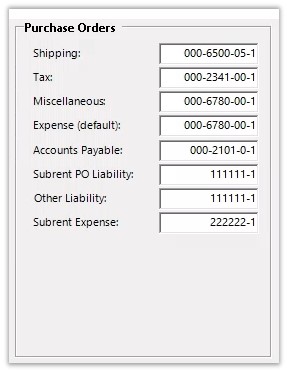
5. Once the data and configuration have been set, the purchase orders must have the correct data set to be exported. By selecting the vendor with the correct name, you are tying the purchase order to the correct vendor account. Also, as you write your purchase orders the system asks which General Ledger account to expense this purchase to. One has to be selected before the import can take place unless there is a default expense account set (the default account number will be used if one is not specified for an item). You can do this at open or after receiving the items but it must be done before import. You can use different accounts on the same purchase order as the account number is assigned by line item.
6. If there are shipping charges, miscellaneous charges, or taxes, they should be entered as well.
Important: There is a field for the invoice number and it should be set to the invoice number from your vendor. Do not set the invoice number in the PO until you have received the final invoice and have made all the necessary adjustments to the PO. The quantities, pricing, account numbers, shipping costs, etc. should match the vendor's invoice before entering the invoice number in the PO. When exporting there is a field you can select to only include PO’s that have an invoice number.
7. Once the purchase order agrees with the vendor’s invoice it is ready to import. Under Purchase Orders, you have the option to Export POs to AP.
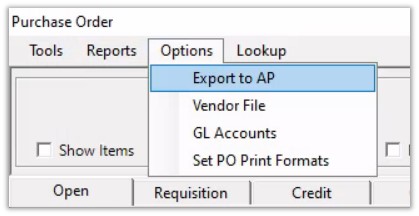
8. This will bring up a window where you can select the date range of purchase orders to be exported. You will select the export format, “AccPac” or “QuickBooks.” You will put a check in the box “Only include PO’s with invoice numbers” as they are ready to import. You can import POs without invoices but the data would likely be incomplete or incorrect.
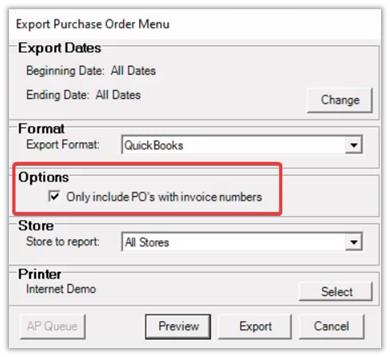
There is a “Preview” button that you can select and it will display the purchase orders being exported so you can check the data. It will only display closed purchase orders in the date range requested and where an invoice number has been entered (it will not display a PO that has been previously exported). If the data is correct you are ready to export. If not, make the necessary corrections and “Preview” again.
9. When satisfied that everything is correct, click on the “Export” button and a file will be created in the POR\QB folder with the file name ” AP[year][month][date].IIF (AP20100713.IIF) for QuickBooks or AP[year][month][date].CSV (AP20100713.CSV) for AccPac.
10. Now that the file exists you are ready to import the file into QuickBooks or AccPac. This is done exactly like you would import your daily or monthly General Ledger entries.
In QuickBooks, go to File, at the top of the window, go down to Import, select the type of file to import (.IIF), and select the file location where the AP.20100713.IIF file is located. If you double-click on the file it will import into QuickBooks and you will get a message that data has been imported. If some aspect of the data is not set correctly it will not import.
In AccPac follow their instructions for importing a .CSV file.
Getting Help with Accounting Import/Export
What We Support:
-
We can verify that the data between Point of Rental and the IIF is complete and correct.
-
If Point of Rental shows $100 in acct. 1001 credits then the IIF should as well.
-
The individual transactions will not match 1:1, but the balance of the credits and debits made to those accounts for the dates the IIF file was run for vs. the data in Point of Rental must match.
-
We can also check that all credits and debits balance ($300 in credits and $300 in debits; credits and debits should always balance).
-
-
Troubleshoot that Acct 1000 is mapped to Acct 1000 in QuickBooks/Intacct.
-
Point of Rental account numbers will need to be mapped to the accounts in QuickBooks. You must use account names.
-
Be sure to fill in all relevant account names in the account numbers, item categories, and disbursement items.
-
Account names should not have any special characters (#,*, etc ) as these do not import correctly (see Account Numbers in Net Help).
-
What We Are Unable to Support:
-
We are unable to verify any data once in accounting software.
-
Example: If an entry from the file is uploaded into the accounting software it can be deleted, edited, etc. and there is no record of that or means to troubleshoot.
-
Additional data can be added to accounting software that will affect balances and make troubleshooting by comparing balances between your accounting software and Point of Rental impossible for us to determine without knowledge of all your transactions.
-
-
Once the data is imported into the accounting integration destination software we recommend reaching out to the accounting integration software support team.
-
We are limited to verifying that the Point of Rental and IIF file’s balances match for the date range in question.
Please note:
-
The IIF can also combine several days’ worth of transactions into a single file based on when it is run.
-
The IIF file is generated when End of Day is run. You can rerun the creation of an IIF file by going to “Reprint GL Entries” under Accounting Reports.
-
The IIF file is located under the Export Location on your Accounts.
-
Program Menu > Configurations > Accounting Configurations > Account Numbers
Getting Started with Point of Rental Support
To best serve you please have the answers to these questions:
-
Are you setting up an accounting integration for the first time or have you been using it for a while?
-
Have any changes been made to your accounting setup? (New accounts, name changes, etc.?)
-
Do you know the date range of transactions you need to review?
-
Do you have the IIF/CSV files that correspond to those days?