Setting Up CounterSign
If you have the CounterSign add-on feature, this article will show you how to set up your iPad or tablet so your customer can electronically sign from the counter.
Topics included in this article:
1. Go to Configuration > Company Configuration and go to Printing Options.
2. Check the box for “Use a separate device for in-person e-signatures (CounterSign).
Note: If you are using Cayan for credit cards, this step will have to be done from Stations > Registers and in the Register Configuration there is a ‘Use a separate device for in-person e-signatures’ checkbox.
Check Registers
Make sure the registers you want to use the feature are created. See Setting Up Multiple Registers for more information.
Note: Instructions may vary depending on the device that you are using. We recommend using Google Chrome on all devices.
Android
Make sure you use Google Chrome for Counter Sign. If you do not have it, you can go to the Google Play Store and install it.
1. Open Google Chrome and go to pointofrentalcloud.com/countersign (US); porcloud.com/countersign (AU); rentalessentials.co.uk/countersign (UK).
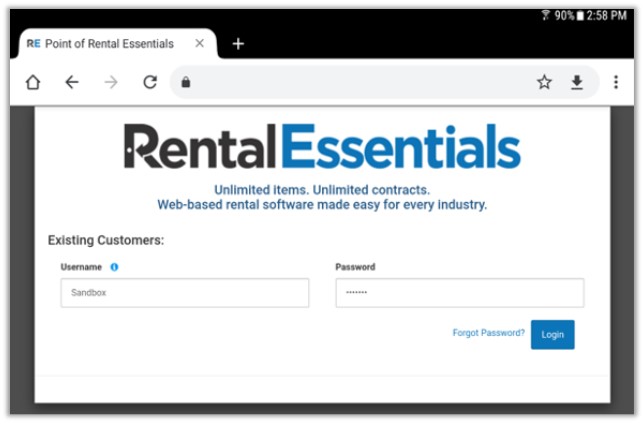
2. Once you sign in, you can give your device a name.
3. Choose a register and click Save.
4. After you click Save, you will get a screen saver on the browser. Once you click Digital Signature on the site, you will see the contract on the device.
Apple Devices
Note: For CounterSign to work you need to download Google Chrome that is available in the App Store. You will also need to be on iOS or iPadOS 12+.
1. Download Google Chrome from the App Store.
2. Open Google Chrome and go to pointofrentalcloud.com/countersign (US); porcloud.com/countersign (AU); rentalessentials.co.uk/countersign (UK)
3. Sign in.
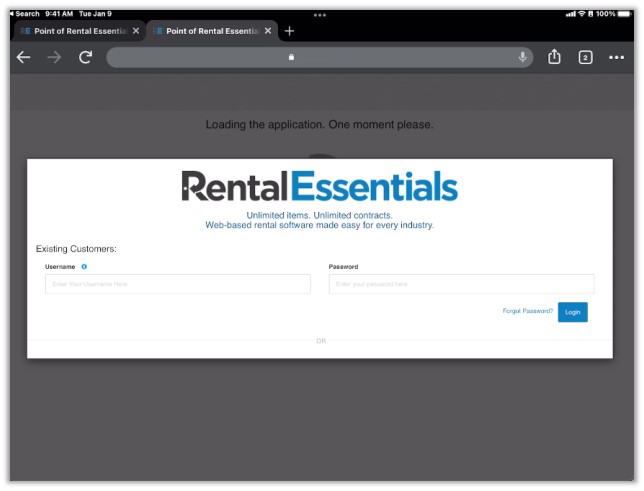
4. Give the device a name and assign it to a register and click Save.
5. After you click Save, you will get a screen saver on the browser. Once you click Digital Signature on the site, you will see the contract on the device.
Related articles
Multiple Registers
Multiple Registers Setup