Was this article helpful?
Elite Browser - Payment Import
This article will discuss the payment import feature through the Elite browser. Access to this feature is controlled by both a Global Feature License and the Left Menu Security. If the feature is not displayed after turning on Left Menu security, the customer should contact Sales to get a license.
Banks allow people to make electronic payments directly into their customers’ accounts. Banks then produce a CSV file containing the payment data. This feature is designed to take ‘bank lockbox’ CSV files, map them to our database, and then import and apply the payments made. This can allow a customer to receive and apply multiple payments in a quick and efficient process.
Topics included in this article
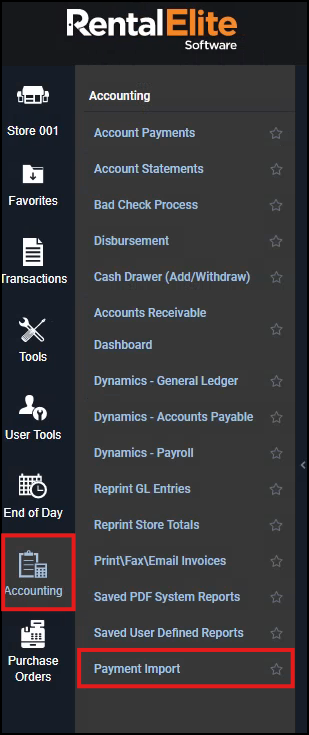
Here's how to get there:
Elite: Left Menu > Accounting > Payment Import
There are two steps to this process and two tabs in the features to handle each of them: Mapping and Files.
Mapping
There is the opportunity to have multiple mapping setups so that customers can have multiple accounts from various banks that accept payments. Each bank will have its own unique data descriptions. Once a mapping is created for a bank/account, you should not have to change it unless the bank updates the column titles in their CSV file.|
Mapping process:
Important: This process only requires the ‘required’ fields be mapped (noted by a ‘*’ in front of the name). Contact your bank for assistance with adding this information to the file if necessary.
1. Select New Mapping and enter a mapping name.
2. Select Choose File.
3. The CSV file must be accessible through Windows Explorer.
4. Once selected, each column will have dropdowns. This is where you complete the mapping.
a. Not every CSV column must be mapped
b. An option can be deselected by selecting the blank space at the top of the options list.
c. For mapping purposes, the Invoice Number is the same as the Contract Number. When the ‘Use Sequential Invoicing’ configuration option is on, these mappings and payment validations will use the Invoice number instead of the contract number.
5. Once all the required options have been mapped, select Submit to save this new mapping.
Upload File:
Once you have created/selected a mapping, choose the file and then select Upload File. This process looks at each ‘Envelope Number’ (payment) and ensures that the contract number is valid.
- If there are contracts that do not validate, the file will still be uploaded, and corrections will be made on the Files tab.
- Each ‘Upload’ must have a unique ‘Lockbox’ number. This prevents files from being uploaded multiple times.
Files
On the Files tab, you will find a grid of uploaded files. Indicators and options display the status of each Lockbox.
This symbol indicates a successfully uploaded file. If the Process Payments option has yet to be executed, you will be able to do it with a Lockbox showing this symbol.
This symbol indicates a Lockbox with errors. There are ‘envelopes’ within this file that are not validating. Likely it is a bad Customer<>Contract match. Payment amounts will not trigger this, as the process will take over- and under-payment amounts.
- Lockbox imports in this state will have an
Edit option. In the edit state, you can click into the fields and update them. Each row (envelope) will validate with the success symbol as you correct them.
- Lockbox imports in this state will have an
- When a file is selected and the detail is displayed below, each ‘envelope’ will also show these icons indicating if that specific line is OK or requires corrections.
- There will be a message in the Notes column such as: ‘Contract and Customer don’t match’
This symbol allows you to delete the Lockbox and the envelopes it contains. If the Process Payments has already been executed, this option is unavailable. It is only to remove incorrect Lockbox files.
When there are multiple Lockbox files that have been uploaded but not processed (and have no errors), when you process one of them, ALL unprocessed files will run through the Process Payments routine.
Note: For users on a transaction-based API accounting integration, any lockbox payments applied towards closed contracts will result in a credit left on the account. This credit will export to the accounting package, where it can then be applied to the contract.