Was this article helpful?
Prompt Pay Discount
Prompt Pay Discount allows you to give customers a discount for paying their bills on time. You can set a percentage to be added to the payment to reduce the amount of the invoice being paid.
Topics in this article include
How does it Work?
 Prompt Pay Discount does not give a discount based on an amount owed but will extend the amount being paid by the Prompt Pay Discount percentage.
For example, an $11 payment with a 10% Prompt Pay Discount amount will offer a payment of as much as $12.
Setting Configuration
Here's how to get there
Expert: Program Menu > Configurations > System Configurations > Parameters > Accounting Tab
Elite: Configuration Gear > App Configurations > System Configurations > Parameters > Accounting Tab
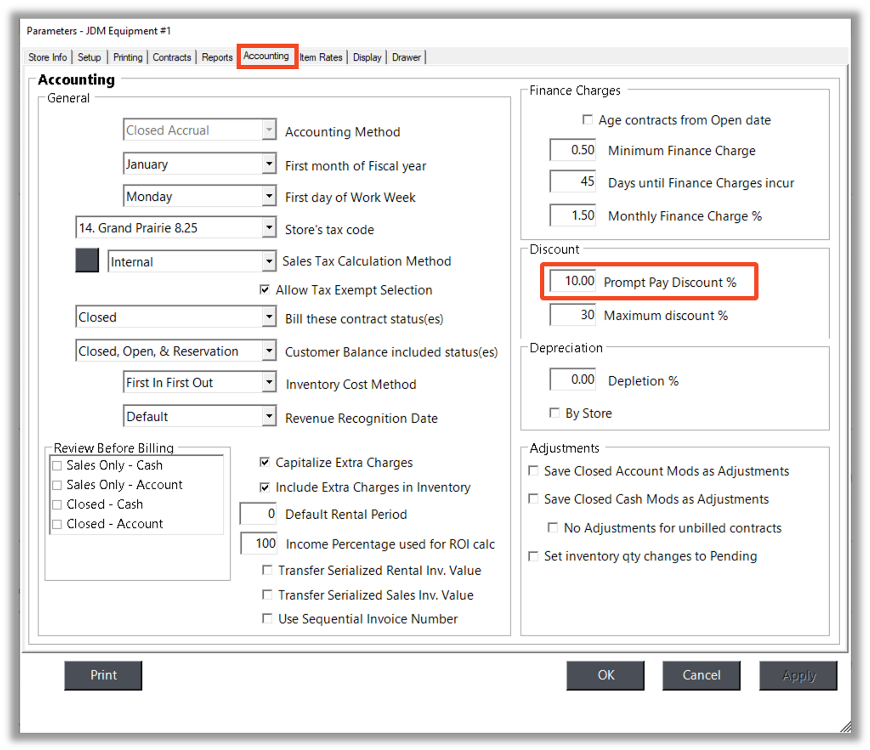
Under the Discount area enter the Prompt Pay Discount amount you want to give to the customer.
Applying the Prompt Pay Discount
When paying the contract, you can pay through Accounts Receivable or the Customer Dashboard. In this example, we are going to show you how to do it through the Customer Dashboard.
Here's how to get there.
Expert: Counter System > Customer Dashboard
Elite: Left Menu > Tools > Customer Dashboard
1. To start the payment process you can go to Tools and Make Account Payment.
2. A new window will pop up. Click on Make Payment.
3. Follow the process of making a payment.