Was this article helpful?
Multi-Language & Language Translations
This article will discuss the Multi-Language feature. Multi-Language allows you to set a default language by store or user. When an employee with a different language logs in, the program will display in their selected language. You can also have different print-out fields, backside legalese, CC authorization, or marketing page. When you choose the language in your parameters, POR will use whatever is in those fields, when printing a contract. This feature is also often referred to as Language Translations.
Topics in this article include
Multi-Language
Multi-Language allows you to set a default language by store or user. When an employee with a different language logs in, the program will display in their selected language.
By Store
- By default, the company's language will go by your server's Windows Language System Locale. Please contact your IT Administrator for more information or if this needs to be changed.
- You can also set a store's multi-language by going to Language Translations, located in Configurations > System Configurations > Language Translations. To begin, click on the header of the language you would like to be the database language. Then, check Identify as Database Language.
By User
If a user requires a language different from your store's, this can be set up in their settings. The below sections will walk you through how to do this in both Expert and Elite.
In Expert
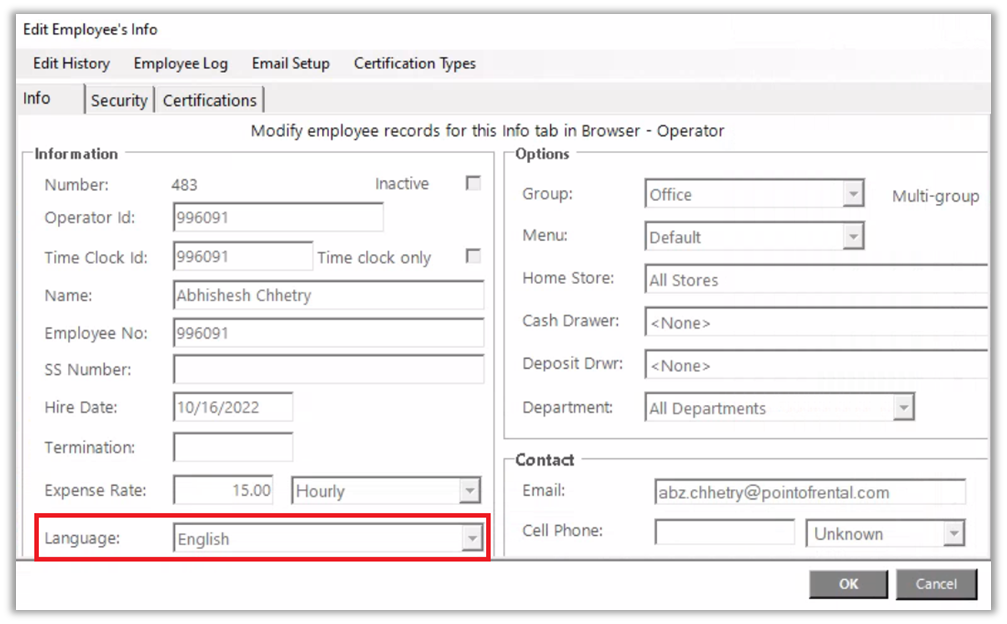
Go to your Program Menu > Security > Employee Setup and select the desired employee. Then, select a different language from the language dropdown.
In Elite
Go to the Operator tab. From Operator Setup within the Browser, you can choose the default language.
Website Integration
The website integration will now support the multi-language display.
Language Translations
You can have contract printout fields, backside legalese, CC authorization, and/or marketing page set to print in a specific language. POR will use whatever is in those fields when printing a contract.
- Getting there:
Elite - Configuration Gear icon > App Configuration > System Parameters > Parameters > Printing tab
Expert - Configuration > System Parameters > Parameters > Printing tab
- In the columns next to the English, right-click the header and select the language from the dropdown.
- Enter the translation for the English word.
Language Translation Boxes
This feature only applies to SQL databases, not JET. This feature is available for all Elite users. New multi-language text boxes have been added in many of the text fields within the item and customer records. This allows you to set the description of an item in English, French, or Spanish. Then when you print a contract for a customer in French, not only will all of the static headings be printed in the selected language, but all of the item descriptions, specs, and notes will be printed in the selected language as well.
Within these fields, you can set the description of an item to French, Spanish, and German.
You can add or use already defined words from your Language Translations, located in Configurations > System Configurations > Language Translations.
Removing the Language Translation Boxes
You can remove the translation boxes from customer and item records by following the steps below.
1. Navigate from System Configurations > Language Translations.
2. Right-click each column header and set the language to “Undefined.”
3. Press OK.
4. The boxes should now be removed.
Changing Date Formats
If you want to change the date format, you can do that in Language Translation. To get there, go to Configuration > System Configuration > Language Translation. From here, you will be able to go to Row number 289 and make the adjustment.
d = 1 or 11 or 31 day or month
dd = 01 or 11 or 31 day of month
M = 1 or 10 or 12 month MM = 01 or 10 or 12 month
MMM = Jan or Oct three-character month name (server language)
MMMM = January or October full month name (server language)
yy = 20 or 23 two-digit year
yyyy = 2020 or 2023 four-digit year
ddd = Mon or Sun three-character weekday name (server language)
dddd = Monday or Sunday full weekday name (server language) - = date separator 11-31-2023 / = date separator 11/31/2023
Examples of what can be used in #289: ddd M/d/yyyy M/d/yyyy ddd M-d-yyyy M-d-yyyy
Phone Number Formats
Please keep in mind that if you're updating the phone number format, it must follow one of the below formats. Not doing so, will cause issues with running reports or areas within the Point of Rental System.
- xxx-xxx-xxxx
- (xxx) xxx-xxxx
- xxx xxx-xxxx
- xxx.xxx.xxxx