Was this article helpful?
Web Payment Configuration/Setup
Web Payment Configuration/Setup enables you to accept payments via a webpage for Quotes and Reservations. With this feature, the rental store can generate an email with an embedded web payment link to a secure online payment page. Visit www.rentalhosting.com for more information and pricing.
Topics in this article include
Example of a Website
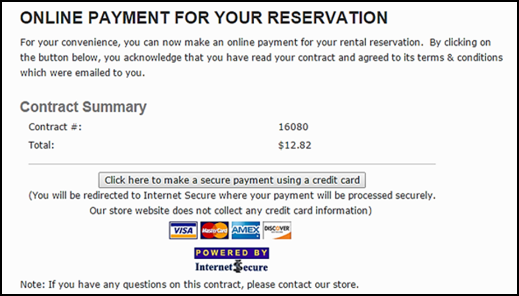
Web Payments
How the Web Payments are imported in Point of Rental
A scheduled task will run at night that will import all web payments. Point of Rental Operator PORADMIN will then take those payments and put them in the OTHER field on the contract payment screen.
Adding the Web Payment link to an Email Message
Here's how to get there:
Expert: Program Menu > Configuration > System Configurations > Email Letters
Elite: Configuration Gear > App Configurations > System Configurations > Email Letters
1. Select a message to include your web payment link, or use the ‘Add’ button to create a new message.
2. Position your cursor in the body of the message where you want the link placed.
3. Use the ‘Special Fields’ button to select ‘{WebPaymentLink}.’ When this message is used, the tag is replaced with a web link to your payment site.
4. Set up varying messages for different situations, such as Quotes or Reservations, so that your customer receives the appropriate message.
Note: To properly format your email message, you must use the HTML <br> tag at the end of each line. See Example Reservation Message below.
Sending an Email with a Web Payment link
Anywhere you can email a contract to a customer, including Day at a Glance for bulk emailing (bulk emailing requires the Mass Fax/Email Module), you can select your email letter containing the web payment link. You can modify the message if necessary.
Online Payment — This allows you to email the customer a link to pay their contract(s) online. The customer then pays the bill with their credit card through a secure web page, and that payment is imported into your system. This will allow you to quickly determine when and how you received the payment.
Weblink on contracts can be set up following this navigation:
Expert: Program Menu > Configuration > System Configurations > Laser Contract Format > Edit > Header tab
Elite: Configuration Gear > App Configurations > System Configurations > Laser Contract Format > Edit
Select the ‘Header’ tab and check the box ‘Include Web Links.’
Select the ‘Footer’ tab and check the box ‘Web Pay Links.’
There will be a credit card icon in the Amount Due box on the contract.
Transaction/Payment History
Once the payment is received through the contact link, it will appear in both the payment history and transaction history in the contract.

Payment History
Notes
If a web payment is sent for a quote, the payment will be put on the customer’s account. On reservations, the payment will be applied to the contract. If, however, you are using an API external accounting integration (Intaact, Xero, Prophet 21, Pofr External) set to transaction mode, the web payment will always be imported as a credit for closed transactions and will then need to be applied. Open and reservation transactions, however, will be paid directly when the web payment is imported. There are two payment gateway options for signing up for the Web Payment module: Cayan or Stripe. If you are using Stripe, refunds must be processed through your Stripe (https://stripe.com) control panel and not through Point of Rental. This also means that when using Stripe for your payment gateway, you will not be able to charge the same card that they used to pay the contract. The card will need to be swiped for a credit/debit transaction.
If a web payment is being imported with a CC Fee, a new contract will be created for the CC Fee. If multiple contracts are being paid simultaneously for a particular customer, only one contract will be created for the CC fee with the total amount of CC fees for all the contracts.
Email Template Examples
Below are templates for setting up email messages within Point of Rental Software. To get to the setup screen, follow this navigation:
Expert: Program Menu > Configuration > System Configurations > Email Letters
Elite: Configuration Gear > App Configurations > System Configurations > Email Letters
Double-click an existing message to edit it. To add a new message, click the ‘Add’ button.
Example Reservation Message
Subject: Reservation#: {ContractNumber} Event: {ContractInfo} Date: {Date}
Body:
Dear {OrderedBy},
Please review the attached reservation #{ContractNumber} for {ContractTime} on {ContractDate}. Feel free to contact us if you have any questions.
For your convenience, you can make an online payment for this reservation. Please carefully review the attached reservation and terms & conditions. Once you have determined that all details are correct, please click on the web payment link below. If you cannot click on the link, please copy and paste the link directly into a new browser's web address bar and follow the instructions for your online payment
{WebPaymentLink}
We look forward to working with you.
Sincerely,
Example Quote Message
Subject: Quote#: {ContractNumber} Event: {ContractInfo} Date: {Date}
Body:
Dear {OrderedBy},
Please review the attached reservation #{ContractNumber} for {ContractTime} on {ContractDate}. Feel free to contact us if you have any questions.
For your convenience, you can make an online payment for this reservation. Please carefully review the attached reservation and terms & conditions. Once you have determined that all details are correct, please click on the web payment link below. If you cannot click on the link, please copy and paste the link directly into a new browser's web address bar and follow the instructions for your online payment
{WebPaymentLink}
We look forward to working with you.
Sincerely,
Example Customer Email
Dear Jesse,
Please review the attached reservation #{ContractNumber} for {ContractTime} on {ContractDate}. Feel free to contact us if you have any questions.
For your convenience, you can make an online payment for this reservation. Please carefully review the attached reservation and terms & conditions. Once you have determined that all details are correct, please click on the web payment link below. If you cannot click on the link, please copy and paste the link directly into a new browser’s web address bar and follow the instructions for your online payment.
{WebPaymentLink}
We look forward to working with you.
Sincerely,
Note: Web Pay XML requests, both imported and not, will be cleared from the import folder after 21 days.